Linux File System & Command Basics
The Root File System (/)
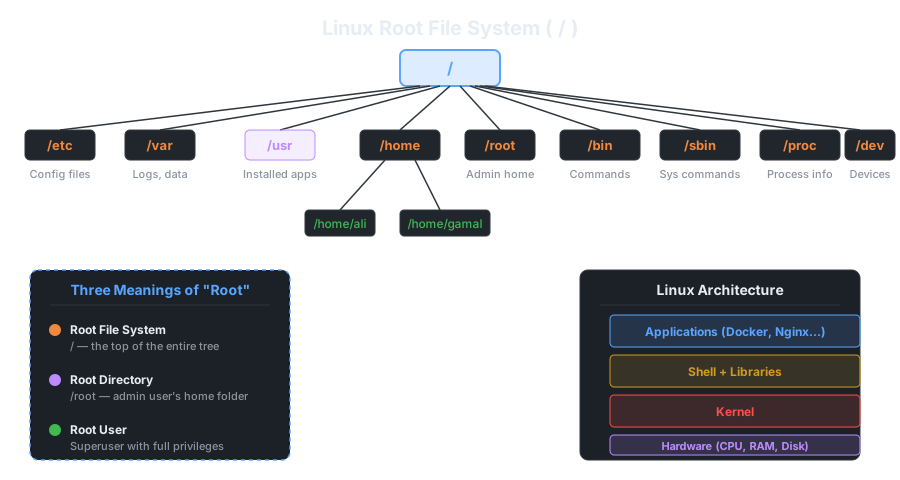
In Linux, everything starts from a single point: the root directory, represented by /. Unlike Windows which has drives (C:\, D:\), Linux has one unified tree structure. Every file, device, and process lives somewhere under /.
Three Meanings of "Root"
The instructor highlighted an important distinction — the word "root" means three different things in Linux:
- Root File System (
/) — The top-level directory that contains everything. It's the starting point of the entire directory tree. - Root Directory (
/root) — The home directory of the root user (the admin). Regular users have homes under/home/username, but the superuser's home is/root. - Root User — The superuser / administrator account with full system privileges. Like running everything as admin in Windows.
Key Directories Under /
| Directory | Purpose |
|---|---|
/etc | System configuration files — settings for the whole system |
/var | Variable data — logs, mail, spool files |
/usr | Installed applications and user programs |
/home | Home directories for regular users (e.g., /home/ali, /home/gamal) |
/root | Home directory for the root (admin) user only |
/bin | Essential command binaries — ls, cp, mv, etc. |
/sbin | System binaries — commands for system administration (need root privileges) |
/proc | Virtual filesystem — contains info about running processes and system state (not real files on disk) |
/dev | Device files — represents hardware (disks, USB, terminals) as files |
/boot | Boot loader files — the kernel, initrd, and everything needed to start the system |
Linux Architecture Stack
The instructor also showed the layered architecture of a Linux system from bottom to top:
- Hardware (H/W) — The physical machine (CPU, RAM, disk)
- Kernel — The core of Linux, manages hardware resources and provides low-level services
- Shell + Libraries — The interface between users and the kernel. The shell interprets your commands and passes them to the kernel
- Applications — User-space programs (web servers, editors, Docker, etc.)
Linux Command Format / Syntax
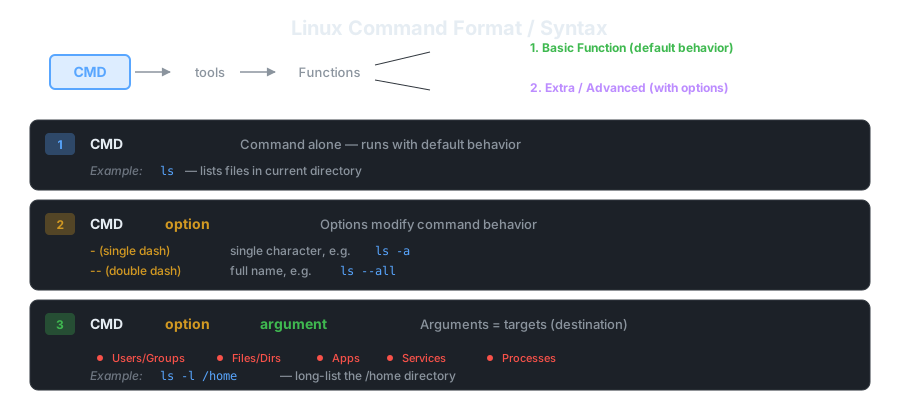
Every Linux command follows a consistent structure. The instructor explained that commands are tools that perform functions — either basic functions (default behavior) or extra/advanced functions (with options).
Three Command Forms
Form 1: Command alone
CMDRuns the command with its default (basic) behavior. Example: ls lists files in the current directory.
Form 2: Command + Options
CMD optionOptions modify the command's behavior. They come in two flavors:
-(single dash) + single character — short form, e.g.,ls -a--(double dash) + full name — long form, e.g.,ls --all
Form 3: Command + Options + Arguments
CMD option argumentArguments are the targets / destinations the command operates on. These can be:
- Users / Groups — e.g.,
useradd john - Files / Directories — e.g.,
ls -l /home - Applications — e.g.,
apt install nginx - Services — e.g.,
systemctl start nginx - Processes — e.g.,
kill 1234
Files in Linux — Types & Text Editors
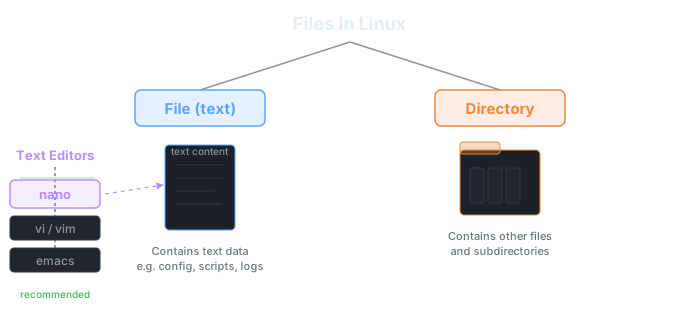
In Linux, everything is treated as a file. There are two main types:
- Files — contain text data (config files, scripts, logs, code)
- Directories — containers that hold other files and subdirectories
To create and edit text files, you use text editors. The main ones available in the terminal:
nano— the recommended beginner-friendly editor. Simple shortcuts:Ctrl+Oto save,Ctrl+Xto exitvi/vim— powerful but has a steep learning curve (modal editor with command/insert modes)emacs— another advanced editor, highly extensible
The instructor recommends starting with nano since it shows its keyboard shortcuts at the bottom of the screen — no memorization needed.
Essential Commands Covered
Navigation Commands
pwd — Print Working Directory
pwd
# Output: /home/gamal
Shows your current location in the file system. Always know where you are before running commands.
cd — Change Directory
cd /etc         # Go to an absolute path
cd ..           # Go up one level (parent directory)
cd -            # Go back to the previous directory (like browser back button)
cd ~            # Go to your home directory
cd              # Also goes to home directory (shortcut)
Listing Files — ls Variants
ls              # Basic list of files in current directory
ls -a           # Show ALL files including hidden (dotfiles)
ls --all        # Same as -a (long form)
ls -A           # Show almost all — hidden files BUT excludes . and ..
ls -l           # Long format — permissions, owner, size, date
ls -i           # Show inode numbers (unique file identifiers)
ls --inode      # Same as -i (long form)
ls /proc        # List contents of /proc — shows running process IDs
The difference between -a and -A: both show hidden files, but -A skips the . (current dir) and .. (parent dir) entries — a cleaner output.
Process Info
ps              # List your running processes
ps -p 1         # Show info about a specific process by PID
ls /proc        # Each numbered folder = a running process ID
stat file.txt   # Show detailed file info (size, inode, timestamps, permissions)
Creating Files & Directories
touch file1           # Create an empty file (or update its timestamp)
touch 'my file'       # Create a file with spaces in the name — use quotes!
Removing Files & Directories
rm file1        # Remove a file (will prompt for confirmation)
rm -f file1     # Force remove — no confirmation prompt
rm -rf dir1     # Remove a directory and ALL its contents recursively
                # ⚠️ DANGEROUS — use with extreme caution, especially as root!
Copying & Moving/Renaming
cp source dest          # Copy a file
cp -r dir1 dir2         # Copy a directory recursively
mv file1 file2          # Rename file1 to file2
mv .file1 file1         # Unhide a file — rename from .file1 (hidden) to file1 (visible)
Viewing & Editing Files
nano test.txt           # Open file in nano editor (Ctrl+O save, Ctrl+X exit)
cat test.txt            # Print entire file contents to terminal
cat test.txt | sort     # Print contents sorted alphabetically (piping!)
tac test.txt            # Print file in reverse order (last line first)
                        # "tac" is "cat" spelled backwards!

head -n 4 test.txt      # Show first 4 lines
tail -n 4 test.txt      # Show last 4 lines
tail -n 4 test.txt | tac  # Show last 4 lines in reverse order
Getting Help
history                 # Show all previously executed commands
command --help          # Quick help for any command
                        # Example: ls --help, cp --help
✓ Key Takeaways
- Linux has a single root
/— everything is a branch from this tree (no C:\ D:\ drives) - "Root" means 3 things: root filesystem (
/), root directory (/root), and root user (superuser) /etc= config,/var= logs/data,/usr= installed programs,/home= user directories,/proc= process info- Commands follow the pattern:
CMD [options] [arguments]— options modify behavior, arguments are targets - Options use
-for short form and--for long form - Hidden files start with a dot (
.) — usels -ato see them,mv .file fileto unhide - The pipe
|sends one command's output as input to the next — chain commands together rm -rfis the most dangerous command — it recursively force-deletes everything with no undotaciscatbackwards — prints file content in reverse line order- Always use
--helpwhen unsure about a command's options