Users & Groups Management
User & Group Configuration Files
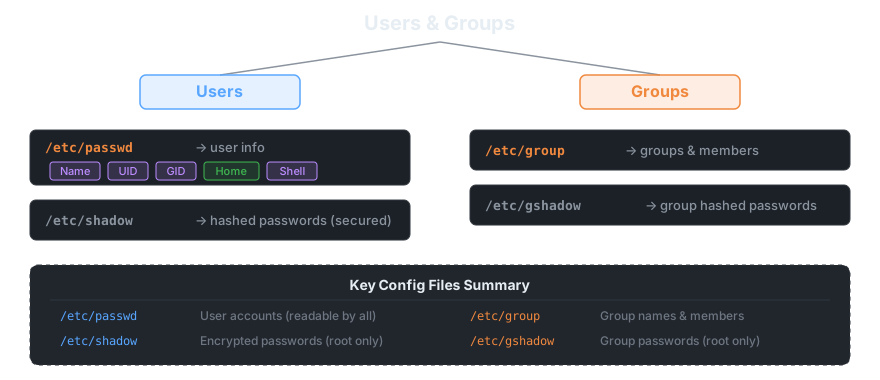
Linux stores all user and group data in four key files under /etc. Understanding these files is essential for managing access and security on any system.
User Files
/etc/passwd — Contains user account information. Each line represents one user with fields separated by colons:
username:x:UID:GID:comment:home_directory:shell
# Example:
gamal:x:1001:1001:Gamal Mohamed:/home/gamal:/bin/bash
The fields include: Name, password placeholder (x), UID (User ID), GID (Group ID), comment, Home directory, and Shell. This file is readable by all users.
/etc/shadow — Contains the actual hashed passwords. Only readable by root for security. Passwords are never stored in plain text.
Group Files
/etc/group — Contains group names and their members. Each line:
groupname:x:GID:member1,member2
# Example:
devops:x:1005:ali,gamal
/etc/gshadow — Contains group hashed passwords. Only readable by root.
User Management Commands
Checking User Info
whoami              # Show the currently logged-in username
id username         # Show UID, GID, and all groups for a user
su - username       # Switch to another user (opens their shell with their environment)
su - (with the dash) loads the target user's full environment — their home directory, PATH, etc. Without the dash, you switch user but keep your current environment.
Creating Users
There are two commands to create users:
sudo adduser username    # Interactive — prompts for password, full name, etc.
                         # Creates home directory automatically
                         # Recommended for manual user creation

sudo useradd username    # Non-interactive — just creates the user entry
                         # Does NOT create home dir by default
                         # Use -m flag to create home: sudo useradd -m username
                         # Better for scripting/automation
Modifying Users
sudo usermod username -aG sudo    # Add user to the sudo group (grant admin privileges)
                                  # -a = append (don't remove from other groups)
                                  # -G = supplementary group
Important: Always use -aG together. Using -G alone will replace all the user's groups with only the one specified — you'd lose their existing group memberships.
Setting Passwords
sudo passwd username     # Set or change a user's password
                         # Prompts for the new password twice
Deleting Users
sudo userdel username       # Delete the user account only
                            # Home directory and files are kept

sudo userdel -r username    # Delete user AND their home directory + mail spool
                            # Use when you want a complete cleanup
Group Management Commands
Creating & Inspecting Groups
sudo groupadd devops          # Create a new group called "devops"
grep devops /etc/group        # Check if the group exists and see its members
Managing Group Members — gpasswd
gpasswd is the main tool for managing group membership:
sudo gpasswd devops -a username              # Add a single user to the group
sudo gpasswd devops -M user1,user2,user3     # Set the full member list (replaces existing!)
sudo gpasswd devops -d username              # Remove a user from the group
Warning about -M: This flag replaces the entire member list. If the group had 5 members and you run -M user1,user2, the other 3 are removed. Use -a to safely add one user at a time.
Modifying & Deleting Groups
sudo groupmod -n newname oldname    # Rename a group
sudo groupdel devops                # Delete a group
                                    # The group must NOT be the primary group of any user
File Permissions
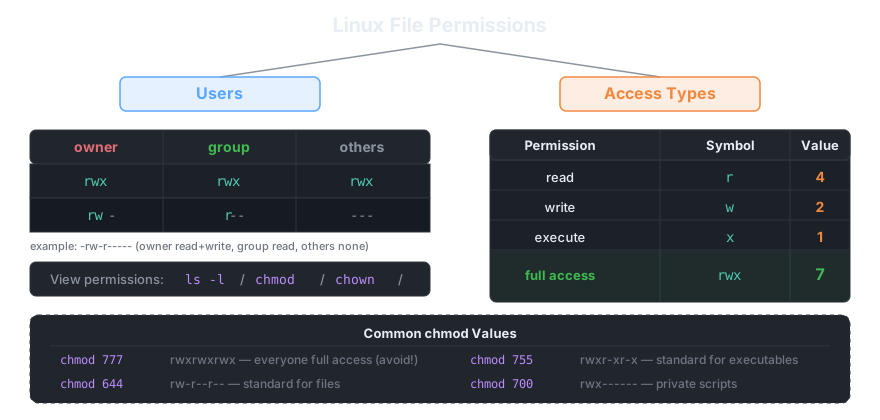
Every file and directory in Linux has permissions assigned to three categories of users. This is how Linux controls who can do what with any given file.
The Three User Categories
Permissions are defined for three groups:
- Owner — the user who created the file
- Group — users who belong to the file's assigned group
- Others — everyone else on the system
The Three Access Types
Each category gets three permission bits:
| Symbol | Name | Numeric Value | Meaning |
|---|---|---|---|
r | read | 4 | View file contents / list directory |
w | write | 2 | Modify file / create or delete inside directory |
x | execute | 1 | Run as program / enter directory |
rwx | full access | 7 | All three permissions combined |
- | none | 0 | Permission not granted |
Numeric values add up: rw- = 4+2+0 = 6, r-x = 4+0+1 = 5, rwx = 4+2+1 = 7.
Reading Permissions — ls -l
Use ls -l to see permissions for files in a directory:
ls -l

# Output example:
-rwxr-x--- 1 gamal devops 1234 May 2 20:00 script.sh
# │││││││││
# │││││││└─ others:  --- (no access)
# ││││└────  group:  r-x (read + execute)
# │└───────  owner:  rwx (full access)
# └────────  file type: - = file, d = directory, l = symlink
The permission string is always 10 characters: 1 type character + 3 for owner + 3 for group + 3 for others.
Changing Permissions — chmod
Think of chmod like changing the visibility rules on a Laravel route — you decide who can access what.
# Numeric (octal) mode — most common
chmod 755 script.sh     # owner: rwx, group: r-x, others: r-x
chmod 644 file.txt      # owner: rw-, group: r--, others: r--
chmod 700 private.sh    # owner: rwx, group: ---, others: ---

# Symbolic mode
chmod u+x script.sh     # add execute for owner (u=user/owner)
chmod g-w file.txt      # remove write from group
chmod o=r file.txt      # set others to read-only exactly
chmod a+x script.sh     # add execute for all (a = all three)

# Recursive (apply to folder and all contents)
chmod -R 755 /var/www/
Changing Ownership — chown & chgrp
# chown — change the owner (and optionally group)
sudo chown gamal file.txt              # change owner to gamal
sudo chown gamal:devops file.txt       # change owner to gamal, group to devops
sudo chown -R gamal:devops /var/www/   # recursive — change entire directory tree

# chgrp — change only the group
sudo chgrp devops file.txt             # change group to devops
sudo chgrp -R devops /var/www/         # recursive
Laravel analogy: chown -R www-data:www-data storage/ is exactly what you do after deploying a Laravel app so the web server can write to storage/ and bootstrap/cache/.
✓ Key Takeaways
/etc/passwdstores user info (readable by all),/etc/shadowstores hashed passwords (root only)/etc/groupstores groups & members,/etc/gshadowstores group passwordsadduseris interactive (recommended for manual use),useraddis non-interactive (better for scripts)- Always use
-aGwithusermod— never-Galone, or you'll wipe existing group memberships userdel -rremoves the user AND their home directory; without-rthe files staygpasswd -aadds one user safely;gpasswd -Mreplaces the entire member listsu - usernameswitches user with full environment;su usernamekeeps your environment- Grant sudo access by adding a user to the
sudogroup:usermod -aG sudo username - Permissions apply to three categories: owner, group, others — in that order
- Permission values:
r=4,w=2,x=1 — add them for numeric mode (e.g.rwx=7,rw-=6) chmod 755= owner full, group+others read+execute — the standard for web-served fileschown user:group filechanges ownership;chgrp group filechanges group only- Always use
-Rflag withchmod/chown/chgrpto apply recursively to directories